
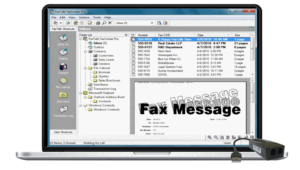
Welcome to the first and only dedicated Web site for WinFax PRO faxing software from Symantec/Delrina. We offer a free community based forum for WinFax PRO support, suggestions and recommendations. Here you'll find the latest news, support and compatibility information related to WinFax PRO.

You can also get professional WinFax Live Remote Support Services from a knowledgeable WinFax tech.

Support the WinFax community and become a WinFax Premium Subscriber You'll have access to all the WinFax support forums and exclusive WinFax Tools program to troubleshoot WinFax issues for only $29.99 (US$) per year. Click the links above for more details.

Visit the WinFax technical support Forums here: WinFax Community Support Forums

Situation: During the installation of WinFax, or when you reboot your computer, the WinFax PRO configuration wizard setup screen appears. When you are presented with the screen to enter your name, fax number and CSID, the screen disappears or the computer hangs/freezes. You cannot continue the setup, and you cannot start WinFax as the setup is not completed.

These steps apply to Windows XP with Service Pack 2 or Service Pack 3, and all versions of WinFax PRO and TalkWorks PRO.

Start WinFax Tools (The full version of WinFax Tools is provided to all paid subscribers to the WinFax Forums. Click here for Premium Subscription Information)

  1. Click on Install & Setup Tools button.
  2. Click on Fix Start Up Errors button.
  3. Click YES, WinFax will automatically close if active.
  4. Click OK to any messages that appear, until completed.
  5. Click Fix Entry Problem on the Main WinFax Tools screen.
  6. Follow the on screen instructions that appear.
  7. Reboot computer when done.
  8. If WinFax setup appears, continue with setup. If WinFax Setup does not automatically start, start WinFax Tools, click on Install & Setup Tools button, click Start WTNSETUP button & Continue the WinFax installation.

Need to fax blast your message to your customers? Have a service which sends fax updates to customers? Why pay for a fax broadcasting service when you can easily do this yourself? Automate the power of WinFax PRO and Microsoft Word’s Merge capability. Fax blast your fax message from your contact list using GetFaxing.com’s WinFax Macro for Microsoft Word.  Save hundreds of dollars a month by sending your faxes yourself using your own fax modem with WinFax PRO.  Compatible with WinFax PRO from Symantec, versions 8.03 to 10.04 (with the exception of 10.02) and Microsoft Word 2000, XP, 2003 and 2007.  For details on the Free trial of the WinFax Macro for Microsoft Word see http://www.getfaxing.com/products.htm

Why are faxes so slow to complete when sending or receiving?

This is a common question that isn’t always easy to answer without more details on the specific fax pages you’re actually sending or receiving. There is a possibility that transmission errors  can cause pages to be re-transmitted, increasing the overall send and receive time.  In addition, there are compatibility issues with specific types of fax devices, where the maximum fax speed may be limited due to different fax specifications such as v.34, v.32bis and v.17 (more on this later.) Read the rest of this entry »

WinFax and Vista compatibility   July 21st, 2009

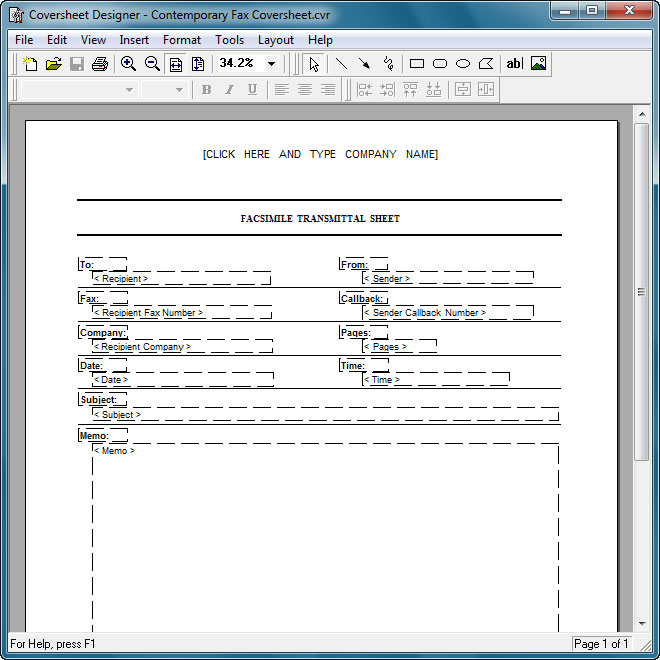
There’s a lot of confusion regarding the compatibility of Microsoft Vista or Microsoft Windows 7 and WinFax PRO. Part of the confusion is that you can install WinFax on a Windows 7 or Vista installation, and you can send a cover page. See the following links regarding the full details on WinFax compatibility with Microsoft Vista or Windows 7.

Information regarding use of WinFax with Microsoft Vista and Microsoft Windows 7 from the WinFax Forums:  http://www.getfaxing.com/forums/viewtopic.php?f=17&t=718

Technical article on Microsoft Vista and WinFax PRO: http://www.getfaxing.com/winfax/2008/11/29/winfax-pro-and-microsoft-vista-compatibility/

Technical article on Microsoft Windows 7 and WinFax PRO: http://www.getfaxing.com/winfax/2009/06/03/symantec-winfax-pro-and-microsoft-windows-7-compatibility/

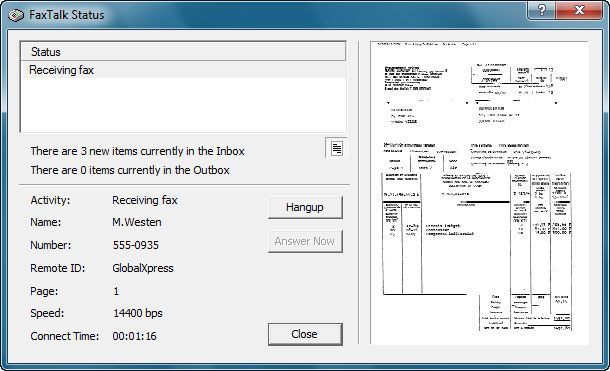
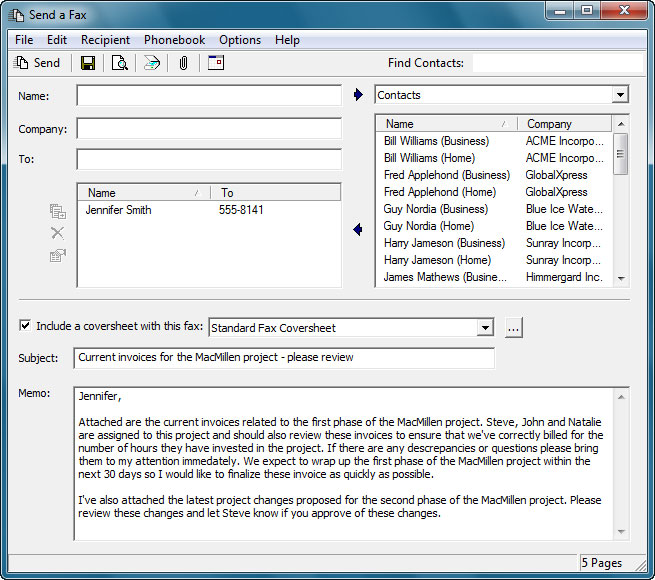
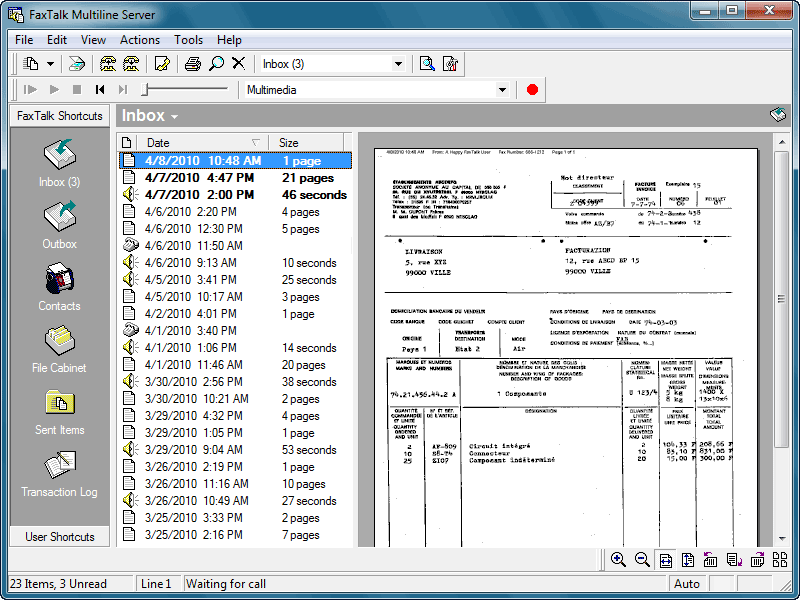
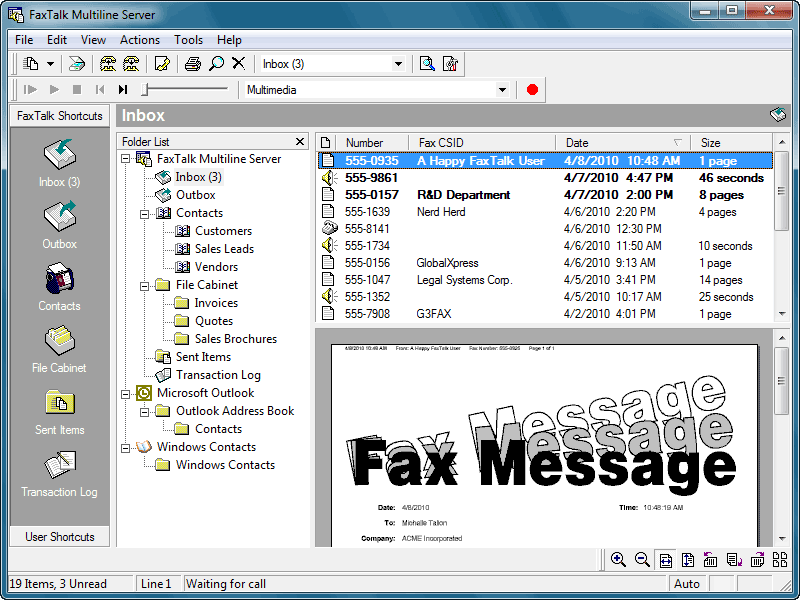
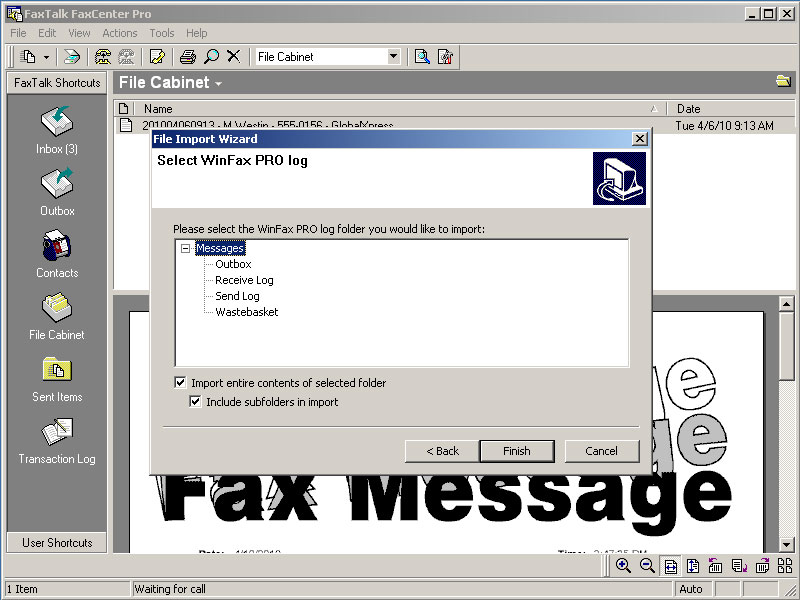
Alternative to WinFax PRO is FaxTalk FaxCenter Pro, it is compatible with Windows 7 & VISTA. More details here: http://www.getfaxing.com/faxtalk

Error message: “Unable to locate the installation log file C:\Program Files\WinFax\WFXUNIST.ISU” during WinFax PRO uninstallation or “WFXUNINST.ISU is missing or corrupt.”

This is an error that causes an uninstall of WinFax PRO to fail.  This file is an uninstallation log file that is generated by a third party installation tool called Install Shield. Its automatically generated when you first installed WinFax PRO, so you won’t find this file on the WinFax PRO installation CD ROM. This log file contains all the information and settings that the uninstall program requires to remove WinFax, such as the program folder locations and features that you added or removed during the install process. Read the rest of this entry »

This error message can occur with version 10.0 and higher of WinFax PRO when the computer is configured as a Fax Sharing Host. It is also related to Error Loading CopyUNIDRV, and WinFax PRO detects that DCOM is not available, please install and activate DCOM support message.

This error message can be corrected with WinFax Tools.  Click “Install & Setup Tools”, then click “Fix Start Up Errors” option in WinFax Tools.

Tags: , , , ,
Posted in Setup, Support | Comments Closed

In this article I will describe some of the challenges of installing WinFax PRO with a Windows 2003 Server, and also the use of Terminal Services/Remote Desktop Services.

Read the rest of this entry »

This error message, along with the “ WinFax is not active for this User Account. Please start the controller and try again.” error message are both related. They can only occur with version 10.02 and higher of WinFax PRO that is operating in the Windows XP environment.  This error does not appear under Windows 2000 or Windows 9x environments, or versions 10.0 or 10.01 of WinFax PRO. To determine the version of WinFax PRO you are using, click “WinFax Info” button in WinFax Tools. Read the rest of this entry »

Be aware of a current  OEM download doorway pages scam that are appearing frequently on many hacked WordPress blogs and similar sites.

What is a doorway page?

It’s a link that may look legitimate and appear on search engines like Google, but once you click them, they can link you to another Web site or page that could be totally unrelated to the original link.

We’ve encountered links where you are presented with a realistic looking “Windows Security” scanner screen, where it looks like it is scanning your computer and it reports that several viruses are detected.  Clicking anywhere on the screen, including the Cancel button forces you to download and run a file.  Read the rest of this entry »

WinFax PRO will support up to 2 modems on a single PC. If you need to have dual modems, I’d recommend ensuring both modems are different, otherwise, you may run into difficulties. Two external controller based modems are best, or one external controller-based and one internal controller-less. You can try two controller-less modems, but make sure they are different models/manufacturers. Never use two softmodem based modems on a single machine, you’re just asking for trouble.

Tags: , , , , , , ,
Posted in Guides, Send and Receive, Setup | Comments Closed

This error message can occur with version 10.02 and higher of WinFax PRO that is operating in the Windows XP environment.  It does not appear under Windows 2000 or windows 9x environments, or versions 10.0 or 10.01. To determine the version of WinFax PRO you are using, click “WinFax Info” button in WinFax Tools.

Usually, starting the WinFax Controller may correct this problem, in some scenarios you may need to reboot of the computer.  If this does not solve the problem, then your installation of WinFax is likely corrupt and needs repair.

If you continue to encounter this error we recommend using the “Fix Start Up Errors” option in WinFax Tools.

When you reboot your computer, the WinFax PRO configuration wizard setup screen appears. You need to cancel or complete the setup to continue using the computer.  The next time you reboot the computer, this setup appears again. This error can be easily fixed with WinFax Tools. To repair this problem follow these steps: Read the rest of this entry »

Tags: , , , , , , , , , , , ,
Posted in Installation, Support | Comments Closed

If you’re experiencing problems with winfax where faxes are not displayed in your send dialog window, you will need to use the “WinFax No Pages fix” button in WinFax Tools.  This fix is for all versions of WinFax PRO 8,9,10 and TalkWorks PRO 2,3 that are using Windows NT, Windows 2000, Windows XP, or Windows 2003.  Read the rest of this entry »

Sometimes a fax can appear stuck or faxes fail to send when you submit them. This can be caused due to corruption in the default WinFax send, receive and outbox log.

Repairing a log or phonebook database in WinFax can now be accomplished with ease using WinFax Tools.

Before rebuilding any data in WinFax please backup your entire DATA folder (or entire WinFax folder) where all your WinFax files are located.  We recommend this in case of any failure during the rebuild/repair process.  If you’re not sure where your WinFax files are located, WinFax Tools can determine the location of your DATA folder for you, click on WinFax Info. Read the rest of this entry »

If you’ve just upgraded to Internet Explorer 8, and now WinFax PRO 10 is no longer working as it should (closes when entering phone numbers, fails during an install when entering the CSID, or fails entering number of rings for automatic answer) then see the following link: WinFax PRO and Problems with SP2, SP3, IE7 or IE8

Looking to purchase WinFax PRO?  You may have found links on the internet to download software on the Web and we recommend you do NOT download WinFax illegally from any of these sites. These sites will take your money and you’ll end up with nothing, or worse, stolen personal & financial information.  Symantec (the developers of WinFax PRO) discontinued the software in 2006. The final version is WinFax PRO 10,  and Symantec  no longer sells it. 

 To purchase WinFax PRO, you’ll need to buy from a liquidator/distributor who has NOS (New Old Stock) on hand, or buy from a third-party 2nd hand.   Read the rest of this entry »

If you’ve sent a large number of faxes and you want to stop all of them, you can do a simple “HOLD ALL” in WinFax to stop the sending of all faxes in your outbox. Read the rest of this entry »

Tags: , , , , , , , , , , ,
Posted in Support | Comments Closed

First time guide to WinFax PRO   June 25th, 2009

So you’re looking for fax software for your Windows based computer? WinFax PRO is a good choice, its the leading Windows desktop software for faxing and has been for over 15 years, it has many features, outstanding management capabilities, and is very easy to learn.

Here’s a Video of some of WinFax’s features.  It was incorrectly named Norton WinFax in the video, WinFax Features Video

Before you purchase WinFax PRO software (eBay is one source), I’d recommend you read the following guide, so you know what you are buying. Read the rest of this entry »

Windows XPM is an interesting feature for Windows 7, it allows Windows XP applications to run under the same desktop with Windows 7. Unfortunately, Not all PC’s will support the new Windows XP Mode under Windows 7. The processor must support a feature called “hardware virtualization”, which is not supported in many Intel & AMD processors. In addition, even if your CPU does support hardware virtualization, your BIOS must also support it. If you have an older bios that can’t be updated and a chip that does support hardware virtualization, you’ll still be out of luck in using Windows XPM in Windows 7.

UPDATE: Microsoft has released an update for Windows XP Mode to allow for compatibility with processors without hardware virtualization.  For best performance, Microsoft recommended a hardware virtualization CPU.   Read the rest of this entry »

Tags: , , , , , , , ,
Posted in Support | Comments Closed


windows7Many of you held off upgrading from Windows XP to Windows Vista and are considering the upgrade to Microsoft’s latest operating system Windows 7 (or even the new Windows 8), but are wondering if many of your existing applications such as WinFax PRO will work.

WinFax PRO and TalkWorks PRO (the fax/voice version of Symantec’s popular fax software) still have a strong user base and many of you don’t want to give up this powerful and easy to use desktop faxing software.

Unfortunately Microsoft Windows 7, along with the upcoming Windows 8 are NOT compatible with WinFax PRO. Read the rest of this entry »


Symantec, WinFax, WinFax PRO, WinFax PRO 10, WinFax PRO 10.01, WinFax PRO 10.02, WinFax PRO 10.03, WinFax PRO 10.04, TalkWorks PRO 2.0, TalkWorks PRO 3.0
are all registered trademarks of Symantec Corporation.
Microsoft Word is a registered trademark of Microsoft Corporation.
©2012 GetFaxing.com. GetFaxing.com is not affiliated with any of the third-party companies listed on this Web site, see the legal disclaimer for more details.