Live Chat Help
Get professional WinFax Live Remote Services from experienced WinFax technicians, starting at only $39.99 Flat rate. Are you a DIYer? become a WinFax Premium Subscriber and have access to all our WinFax support forums and exclusive WinFax Tools program to troubleshoot WinFax issues for only $29.99 per year. Click the links above for more details, or contact us via chat.

Visit the WinFax technical support Forums here: WinFax Forums

We just released our Fax Merge for Microsoft Word software for FaxTalk FaxCenter Pro 7.5. 
Versions for Microsoft Word 2007 and 2003/XP will be available.  For more details, please visit our Web site at http://www.getfaxing.com
 
About FaxTalk FaxCenter Pro 7.5 from Thought Communications
 

Looking for a WinFax PRO replacement that is compatible with Microsoft Vista and Windows 7 that can import your WinFax PRO data?

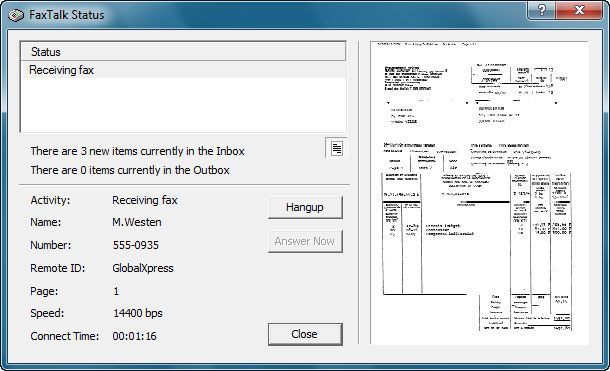
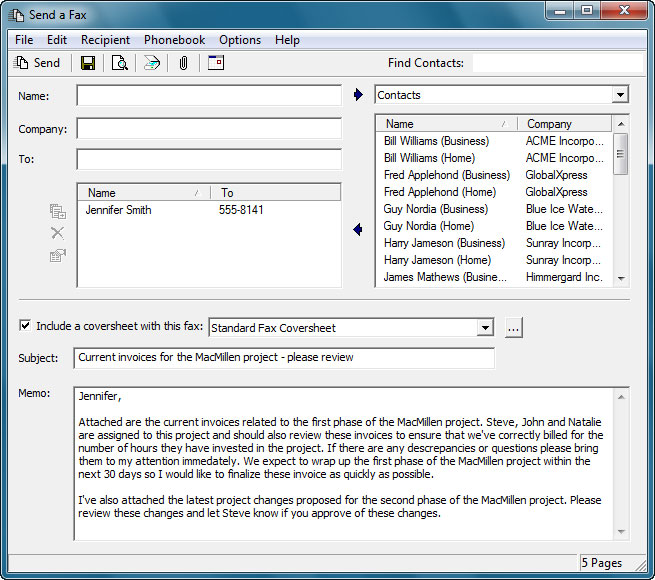
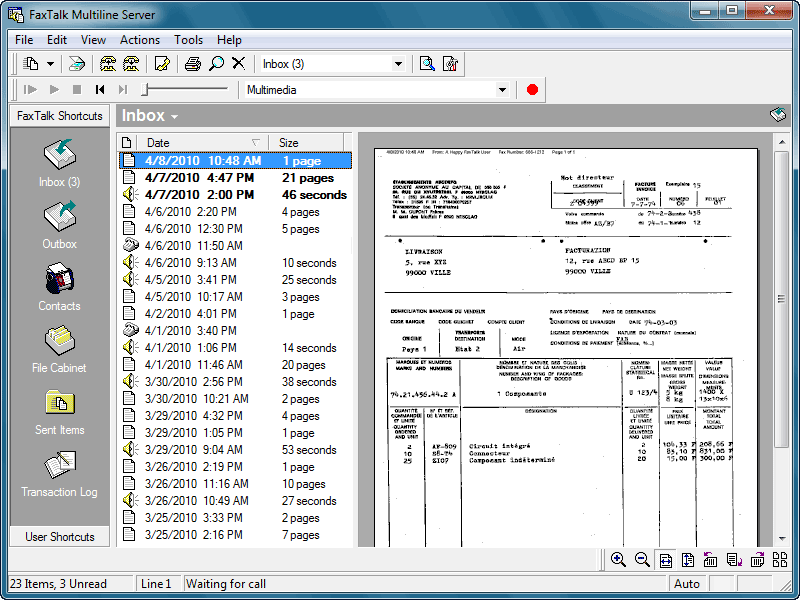
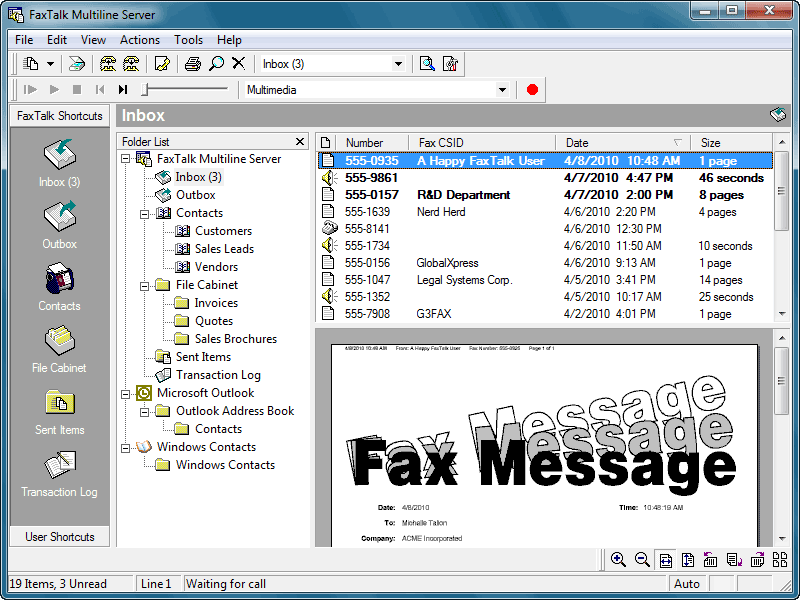
Using the advanced fax features included in FaxTalk FaxCenter Pro software you can send documents to any fax machine or email address. With FaxTalk FaxCenter Pro 7.5 you have all the tools needed to manage your fax communications quickly, efficiently and easily. With easy-to-use, powerful fax features, FaxTalk FaxCenter Pro conveniently manages all of your faxes, both sent and received. FaxTalk FaxCenter Pro’s advanced fax capabilities eliminates the need for a stand-alone fax machine and turns your computer into a complete fax communications system. FaxTalk FaxCenter Pro provides you with a central place to store and manage your fax communications with tools to provide quick access to all of your fax information.
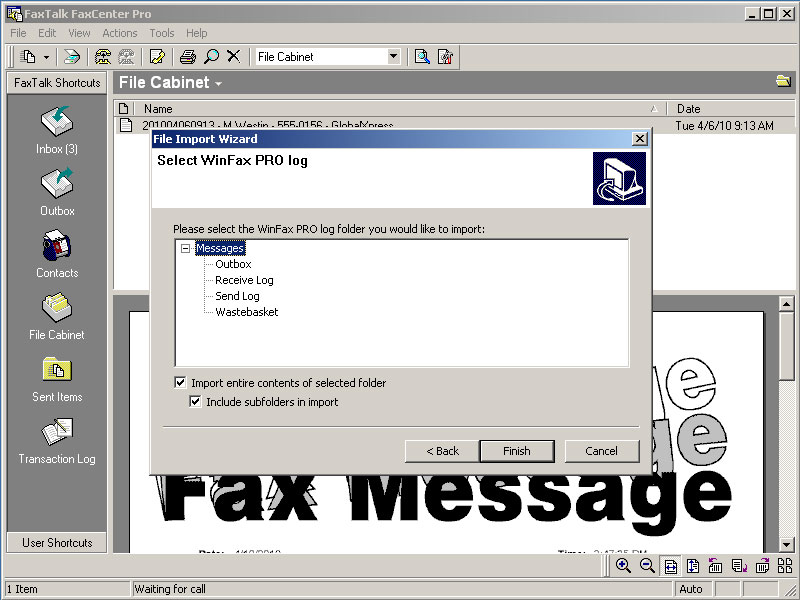
  • Import WinFax PRO faxes and contacts.
  • Powerful, easy-to-use fax software.
  • Produce professional looking faxes with full preview and annotation.
  • Access Microsoft Outlook contacts directly when sending faxes.
  • Forward received faxes by email.
  • Operates as a network fax client for FaxTalk Multiline Server
  • Broadcast faxes to fax numbers and email addresses.
  • Block the reception of unwanted junk faxes.
Tags: , , , , , , , , , , , , ,
Posted in Guides, Support | Comments Closed

One of the main components of WinFax PRO is its printer driver, the printer driver allows you to fax from other applications. Without this driver, you cannot send faxes from other applications. WinFax PRO is crippled without the installation of the included printer (WinFax) driver, without it, all you can fax are single cover pages that are built into WinFax.

Windows Server 2003

The first problem with installation of WinFax PRO under Windows 2003 is that the printer driver support in the operating system was moved from kernel to user mode. The reason is that the use of kernel mode printer drivers can possibily cause a server to hang, result in a blue screen and require a reboot. This isn’t something you want happening on a server. Because of this possibility, Microsoft decided to block the installation of all kernel mode printer drivers in Windows 2003. During the installation of WinFax PRO, a kernel mode printer driver (also called version 2 printer driver) is added to your list of installed printers. By default, Windows 2003 won’t allow you to add this printer, and during the installation it is either ignored silently or a printer driver related error message is displayed. Fortunately, in Windows 2003 you can bypass this restriction. You can set a group policy in Windows 2003 to allow the installation of kernel mode printers. Once you’ve done this, you should be able to successfully install WinFax PRO under Windows 2003.

Windows Server 2008

 Windows Server 2008 does not support Type 2/Kernel Mode printer drivers. While the installation of WinFax (may) appear to complete under Windows 2008, the installation  will not include these printer drivers.  WinFax PRO is not compatible with this operating system.

Notice to WinFax PRO users that are using WinFax PRO clients with NET SatisFAXtion server software and are considering upgrading to version 8.5 or 8.6.

FaxBack has recently released version 8.6 of NET SatisFAXtion server software.  WinFax PRO client support has been completely omitted in the documentation of versions 8.5 and 8.6. The last version that mentioned the ability to connect WinFax as a client was version 8.1. 

We couldn’t find any upgrade warnings in the 8.5 or 8.6 upgrade or administration documentation for users that could possibily upgrade only to find they now have a bunch of  client software that won’t connect to NET SatisFAXtion anymore.

It’s obvious that the WinFax client feature has been depreciated since version 8.1, but it’s possible that WinFax PRO clients are still “unofficially supported”  in versions 8.5 and 8.6 with use of the latest WinFax Connector.

If you have any additional details regarding compatibility with these versions please let us know.   We contacted FaxBack directly and received a reply that WinFax PRO connector had not been supported since version 8.0 (while we found a WinFax Connector update released about 2 years after the release of 8.0? and 8.1 mentions it in the documentation :(   )

So, we’re unsure about this and FaxBack hasn’t been helpful with an answer.  We do know that  NET SatisFAXtion version 8.0 will be retired December 31, 2009.

WinFax printer add failed. Error code ->1797 or 126 and other error codes.

If you are experiencing errors installing the WinFax printer driver, such as Error Code ->1797 or Error Code->126 you may have problems with the WinFax driver files.

Symantec has a list of troubleshooting steps here, but we’ve found these are usually not always effective in solving this problem (and is very time consuming, a reinstall is usually not required). 

http://service1.symantec.com/SUPPORT/faxprod.nsf/docid/2002012814193804

Subscribers to our forums and download access to WinFax Tools can automatically check for these files and repair any errors automatically.

This error can be fixed in WinFax Tools by clicking on “Install & Setup Tools” and then, “Install Printer Driver

Click here for more information on subscribing to WinFax Tools.

WinFax printer add failed. Error code ->1930

WinFax PRO and TalkWorks PRO requires a Windows compatible operating system such as Windows 9x, Windows NT, Windows 2000 and Windows XP, that will support Kernel Mode (Type 2) printer drivers. Microsoft VISTA and Windows 7 do not support Kernel Mode printer drivers.  While Windows 2003 does support kernel mode printers, they are blocked by default. Windows 2003 requires a policy change to allow for Kernel mode printer driver installation. You must disallow Kernel Mode blocking in Windows 2003 before you can install the WinFax printer drivers.

Windows 7 and Symantec WinFax PRO   October 28th, 2009

Unfortunately, like Microsoft Vista, Windows 7 is not compatible with WinFax PRO due to some of the changes made to the operating system.  With the release of Windows 7, Microsoft has acknowledged that many are still using legacy Windows XP applications, like WinFax PRO, and require a method to run these applications on a Windows 7 based PC.  A possible solution to run these legacy “XP” applications on your Windows 7 desktop is a feature that is available in some versions of Windows 7 called Windows XP Mode. 

Our initial testing confirms that you can run WinFax PRO in Windows XP mode, but you cannot “share” the WinFax PRO printer driver with Windows 7 applications.  We successfully shared the fax modem, (and it was a software based modem!) but not the fax printer. This prevents any access from Windows 7 programs to the WinFax printer. Only the applications that are installed within the Windows XP Virtual machine can be used with WinFax to send faxes, you cannot create faxes from within Windows 7 applications. 

This limits the usability of WinFax in Windows 7.  if you require to fax from a Windows 7 application, it will not work.  Although, having Windows XP within your Windows 7 operating system saves you the expensive of having another separate computer just to run legacy Windows XP applications such as WinFax.

An alternative to WinFax PRO is FaxTalk FaxCenter Pro 7.5,  more details here: http://www.getfaxing.com

 More on Windows XP Mode.

Windows XP Mode is a feature that is optional on Professional, Ultimate and Enterprise versions of Windows 7. Windows XP Mode is not available in the Home Premium or Starter Editions of Windows 7. Windows XP Mode option can be downloaded at no additional charge with a qualified version of Windows 7 directly from Microsoft’s Web site here:

http://www.microsoft.com/windows/virtual-pc/download.aspx

In addition to the downloads, you’ll need a compatible processor and motherboard that supports hardware virtualization (AMD-V or Intel VT , also code named Vanderpool technology) . Microsoft has released a tool which you can download to test to see if your processor can support the AMD-V or Intel VT mode.  See Microsoft’s link above for more details.

More info on some compatible CPU’s in this post: http://www.getfaxing.com/forums/viewtopic.php?f=17&t=718

Don’t get duped into buying a counterfeit WinFax PRO 10 CD ROM.  Here is how you can tell the difference from a “real” CD ROM and the obvious fakes. If you purchased your Symantec WinFax PRO with a box and manual, chances are it is the genuine item. If you purchased a “loose” CD ROM, usually referred as “OEM”, then you should check for the following:

  • Symantec never included the actual revision of WinFax PRO 10 (10.01,10.02 or 10.03)  on the CD ROM.  So, if your WinFax PRO CD ROM says “WinFax PRO 10.03″ its a fake. All genuine WinFax PRO 10 cd’s contain the heading ”WinFax PRO 10.0″
  • If you see text with “winFAX” or “Live Update” anywhere on the CD its a fake.  The official Symantec trademarks are ”WinFax” and “LiveUpdate”, no other variations of this text should appear on the CD ROM.
  • Failure to capitalize ”symantec” and “corporation”.
  • An “All rights resverd” spelling error, or other spelling errors.
  • Incorrect font used for WinFax PRO and Symantec logo. The current Symantec logo is consistant across all software they produce.
  • Silver portion of CD is a (dull) matte finish, on the real CD it is relective (mirror surface).
  • To determine if the CD is brand new and sealed – geniune WinFax PRO 10 CD’s come in a white envelope sleeve that are sealed with a sticker that may have one or more of the following: a bar code, a Symantec 5 or 6 digit product code, a brief license agreement. 
  • In most cases, manufacturer information is printed on the inner rim of the CD ROM of genuine CD’s. This is usually missing on a counterfeit.
  • Update patch 10.04 is not included on genuine CD ROMs. Any CD that contains the patch update to 10.04 is a counterfeit.

Example of a counterfeit CD ROM (left) and genuine WinFax PRO 10 CD ROM (right). Notice the differences in the mirror surface, the Symantec logo, and different font types. The counterfeit contains ”10.03″ version, something that is not printed on the genuine CD.  You’ll also probably see manufacturer information around the inner rim of the genuine CD ROM.  This is  likely to be missing on the counterfeit WinFax PRO CD.

Counterfiet_CD_WINFAX cd2

cd1 

Here is the original design of the CD ROM surface used for North American releases of WinFax PRO 10.0 and WinFax PRO 10.01. This has a different design with use of the older style Symantec logo. This image on the left is an example of a genuine WinFax PRO 10.0 or 10.01 CD ROM. Version 10.02 or 10.03 use the updated design & Symantec logo. It’s not known if any counterfeits exist, but a version 10.02 or 10.03/10.04 distributed with this design could indicate a counterfeit version. This design also uses a reflective mirror finish on portions of the CD ROM. Lack of reflective mirror finish would indicate a counterfeit CD.

WinFax PRO 10.04 update is a patch file released from Symantec in 2005 that updates the Fax Sharing features of WinFax PRO.  After the patch is applied, the following WinFax PRO 10.03 files are updated in the WinFax installation folder:

  • About.cfg
  • ISUtil.dll
  • UNINSTAL.DLL
  • WFXCTL32.EXE (2 different versions depending on operating system)
  • WFXRES32.DLL
  • WFXIFWPP.DLL
  • WPHOST.WPI

The update should only be applied to WinFax PRO 10.03 (North America) version, and is recommended only if you are using the Fax Sharing feature where one or more client(s) are using Windows XP.  

We do not recommend installing this patch for any other purpose, as it does not solve any other issues. If you’re having a problem with WinFax not related to fax sharing under Windows XP, then this update will not fix it. If you are using version 10.03 and do not use fax sharing, this update is not recommended. Do not install this update overtop any other version of WinFax, or any non-English language version of WinFax.

Symantec’s instructions to download and install WinFax PRO 10.04 update is available here: http://service1.symantec.com/SUPPORT/faxprod.nsf/docid/2004113014595304

Message Stores

WinFax PRO and TalkWorks PRO stores log records in the default Messages message store. A message store works like a filing cabinet with drawers that hold different types of files. For easy access, the Messages message store organizes your messages by placing them in one of four default folders:

  • Send Log  Stores sent messages.
  • Receive Log  Stores received messages.
  • Outbox  Stores scheduled, held, and pending messages.
  • Wastebasket  Stores deleted messages until you remove them manually or automatically.

Fax and voice log entries in the Messages message store are uncompressed; the Messages message store is therefore more suitable for short-term message storage or for storing a smaller number of messages

If you want to keep your messages for long-term use or you receive large numbers of messages, you can set up your own message filing system with custom message stores and subfolders. For example, you might want to organize correspondence by customer and your sales reports by quarter.

WinFax PRO and TalkWorks PRO does not use fixed TCP or UDP ports when using Fax or Message Sharing. Fax Sharing is accomplished using Microsoft DCOM technology. DCOM dynamically assigns one TCP port and one UDP port to each executable process serving DCOM objects on a computer. DCOM initially uses Port 135, once this connection is established, other ports are used. To ensure proper Fax Sharing, you need to ensure port 135 is not blocked and that wfxctl32.exe process is not blocked in your firewall or anti-virus settings.

Tags: , , , , , ,
Posted in Fax Sharing, Support | Comments Closed

Error: WFXCTL32.EXE caused an invalid page fault in module WFXIFWPP.DLL when connecting to a WinFax PRO or TalkWorks PRO Fax Sharing host.

Versions of WinFax affected: Confirmed with all versions of WinFax PRO 9.0x, WinFax PRO 10.0x and TalkWorks PRO 3.0. This error only exists on a fax sharing client, when connecting to a fax host. 

This error occurs when a Fax Sharing client connects to a Host, and displays the Received Fax Dialog box.  This dialog box contains a selection list box from the Host computer containing the Fax Message information, including the number of pages, the Remote CSID, the type of message (fax or voice), and the date & time the message was received.   This data is stored internally as comma delimited format.  If a Remote CSID contains a comma, the list is becomes shifted and is positioned in the list box incorrectly. Lack of error conditions in this module causes the error message in to fault in module WFXIPWPP.DLL

Solution/Workaround:

To correct this problem, you need to view the Host receive log and examine any received faxes that have a Remote CSID that contain a comma.  You need to remove these specific faxes from the Receive log (either delete them, or move them into another folder). 

If these faxes are being received from within your own organization, you can prevent future occurances of this error by remove any comma’s from the CSID’s in the fax machines, or software that you use within your organization. Unfortunately, you cannot control other fax machines that you receive from, so any other fax machine you receive from with a comma is the CSID will trigger this error.

What is a Remote CSID (also called a TSID)? 

This is the data that the caller has entered in the fax machine, or fax software that identifies that specific fax machine. Usually, this information contains the fax number but sometimes can also contain a text message, like a company or department name.  If the CSID (or the TSID) contains a comma, this triggers the error in WinFax.  This is a flaw that was not fixed by Symantec, expecting that a CSID would never contain a comma.

LogoYour own dedicated incoming fax line for $1.00 a month ($12.00 a year)  Yes it is true. Forget those other services that charge $10 to $20 a month! Available in the USA and Canada!

We’ve been testing an on-line fax service for a few months now, and have found OneSuite.com to be reliable for incoming and outgoing faxes.  Get yourself your own fax number, from a selection of 16 U.S. states, with unlimited incoming fax pages.  Your faxes are then transmitted to you instantly to your e-mail address in a multi-page PDF format. Get started for as low as $1.00 a month for unlimited incoming fax service! and you can get started within minutes with a minimum pre-paid amount of $10.00 US Dollars. Use the link below to sign up, and get an additional 5% sign up bonus and your 1st month free!  https://www.onesuite.com/A96909221/suitetreat

If you want to be able to send and receive faxes, the service is $2.95 a month and includes unlimited incoming faxes.  Sent faxes are charged at a per page rate , in USA/Canada the current rate is 2.5 cents per page. 

No setup fees, no hidden fees, you pay for what you use and the monthly fee of only $2.95 for sending and receiving, or $1.00 a month for receiving only.  Each subscription plan includes your own fax number, with unlimited fax receive.

Use SuiteTreat promotion code : A96909221 to receive the 5% Bonus plus your 1st month free.

Situation: During the installation of WinFax, or when you reboot your computer, the WinFax PRO configuration wizard setup screen appears. When you are presented with the screen to enter your name, fax number and CSID, the screen disappears or the computer hangs/freezes. You cannot continue the setup, and you cannot start WinFax as the setup is not completed.

These steps apply to Windows XP with Service Pack 2 or Service Pack 3, and all versions of WinFax PRO and TalkWorks PRO.

Start WinFax Tools (The full version of WinFax Tools is provided to all paid subscribers to the WinFax Forums. Click here for Premium Subscription Information)

  1. Click on Install & Setup Tools button.
  2. Click on Fix Start Up Errors button.
  3. Click YES, WinFax will automatically close if active.
  4. Click OK to any messages that appear, until completed.
  5. Click Fix Entry Problem on the Main WinFax Tools screen.
  6. Follow the on screen instructions that appear.
  7. Reboot computer when done.
  8. If WinFax setup appears, continue with setup. If WinFax Setup does not automatically start, start WinFax Tools, click on Install & Setup Tools button, click Start WTNSETUP button & Continue the WinFax installation.

Need to fax blast your message to your customers? Have a service which sends fax updates to customers? Why pay for a fax broadcasting service when you can easily do this yourself? Automate the power of WinFax PRO and Microsoft Word’s Merge capability. Fax blast your fax message from your contact list using GetFaxing.com’s WinFax Macro for Microsoft Word.  Save hundreds of dollars a month by sending your faxes yourself using your own fax modem with WinFax PRO.  Compatible with WinFax PRO from Symantec, versions 8.03 to 10.04 (with the exception of 10.02) and Microsoft Word 2000, XP, 2003 and 2007.  For details on the Free trial of the WinFax Macro for Microsoft Word see http://www.getfaxing.com/products.htm

Why are faxes so slow to complete when sending or receiving?

This is a common question that isn’t always easy to answer without more details on the specific fax pages you’re actually sending or receiving. There is a possibility that transmission errors  can cause pages to be re-transmitted, increasing the overall send and receive time.  In addition, there are compatibility issues with specific types of fax devices, where the maximum fax speed may be limited due to different fax specifications such as v.34, v.32bis and v.17 (more on this later.) Read the rest of this entry »

WinFax and Vista compatibility   July 21st, 2009

There’s a lot of confusion regarding the compatibility of Microsoft Vista or Microsoft Windows 7 and WinFax PRO. Part of the confusion is that you can install WinFax on a Windows 7 or Vista installation, and you can send a cover page. See the following links regarding the full details on WinFax compatibility with Microsoft Vista or Windows 7.

Information regarding use of WinFax with Microsoft Vista and Microsoft Windows 7 from the WinFax Forums:  http://www.getfaxing.com/forums/viewtopic.php?f=17&t=718

Technical article on Microsoft Vista and WinFax PRO: http://www.getfaxing.com/winfax/2008/11/29/winfax-pro-and-microsoft-vista-compatibility/

Technical article on Microsoft Windows 7 and WinFax PRO: http://www.getfaxing.com/winfax/2009/06/03/symantec-winfax-pro-and-microsoft-windows-7-compatibility/

Alternative to WinFax PRO is FaxTalk FaxCenter Pro 7.5, it is compatible with Windows 7 & VISTA. More details here: http://www.getfaxing.com

Error message: “Unable to locate the installation log file C:\Program Files\WinFax\WFXUNIST.ISU” during WinFax PRO uninstallation or “WFXUNINST.ISU is missing or corrupt.”

This is an error that causes an uninstall of WinFax PRO to fail.  This file is an uninstallation log file that is generated by a third party installation tool called Install Shield. Its automatically generated when you first installed WinFax PRO, so you won’t find this file on the WinFax PRO installation CD ROM. This log file contains all the information and settings that the uninstall program requires to remove WinFax, such as the program folder locations and features that you added or removed during the install process. Read the rest of this entry »

This error message can occur with version 10.0 and higher of WinFax PRO when the computer is configured as a Fax Sharing Host. It is also related to Error Loading CopyUNIDRV, and WinFax PRO detects that DCOM is not available, please install and activate DCOM support message.

This error message can be corrected with WinFax Tools.  Click “Install & Setup Tools”, then click “Fix Start Up Errors” option in WinFax Tools.

Tags: , , , ,
Posted in Setup, Support | Comments Closed

In this article I will describe some of the challenges of installing WinFax PRO with a Windows 2003 Server, and also the use of Terminal Services/Remote Desktop Services.

Read the rest of this entry »

You can buy just about anything on eBay now, including support services from us!

Every so often, about once per week, we’ll be offering an eBay auction for our flat rate WinFax Remote Technical Support Service starting at an opening bid of only $24.95.  Here’s your chance to save up to $15.00 from our regular flat rate at $39.99. You’ll get the same great service at a reduced rate.

Go ahead and visit our eBay page for a listing of any current WinFax service offers we might have available :  http://shop.ebay.com/merchant/getfaxing

As this is an online auction and you’re be competing with other bidders, we can only offer the service after the auction is completed and if you are the final winning bidder.  While we don’t guarantee you’ll win at the final price at $24.95, we’ll guarantee you a final price lower then $39.99.  WinFax Fax Sharing and any development support is not included in this auction.

Need some support as soon as possible? order our service here http://www.getfaxing.com/services.htm

Tags: , , , , , ,
Posted in Guides, Support | Comments Closed

This error message, along with the “ WinFax is not active for this User Account. Please start the controller and try again.” error message are both related. They can only occur with version 10.02 and higher of WinFax PRO that is operating in the Windows XP environment.  This error does not appear under Windows 2000 or Windows 9x environments, or versions 10.0 or 10.01 of WinFax PRO. To determine the version of WinFax PRO you are using, click “WinFax Info” button in WinFax Tools. Read the rest of this entry »


Symantec, WinFax, WinFax PRO, WinFax PRO 10, WinFax PRO 10.01, WinFax PRO 10.02, WinFax PRO 10.03, WinFax PRO 10.04, TalkWorks PRO 2.0, TalkWorks PRO 3.0
are all registered trademarks of Symantec Corporation.
Microsoft Word is a registered trademark of Microsoft Corporation.
©2009 GetFaxing.com. GetFaxing.com is not affiliated with any of the third-party companies listed on this Web site, see the legal disclaimer for more details.