How to setup voip.ms T.38 Fax Service with FaxTalk

Requirements
You’ll require one of the following software products: FaxTalk FaxCenter Pro 10, FaxTalk Messenger Pro 10 or FaxTalk Multiline Server 10. You’ll also require a high-speed internet connection and an account with voip.ms. No telephone line, no wiring or fax modem is required. You can download a free 15-day trial version of FaxTalk products here.
Register and setup the account with voip.ms
Register your account with this referral link: voip.ms to receive your $10.00 USD promotional credit when you sign up. (Minimum deposit required). You will require to setup a DID for incoming and outgoing calls.
You can use a Voice (DIDs) or a dedicated virtual Fax DIDs. These are available within area codes within the United States and Canada only. If you are located in another country, you can still use this service. However, you are limited to a United States or Canadian number. You can send faxes to United States, Canada, and Puerto Rico. After setting up your account, voip.ms will provide you the account details that will contain the account information required to setup FaxTalk.
NOTE: You need to provide government-issued ID and/or utility bills to verify your identity. This process helps VoIP.ms meet legal obligations as a telecom provider. Accounts aren’t activated without successful Know Your Customer (KYC) compliance.
Faxing will work with either a voice DID or dedicated virtual fax DID. Using a Voice DID will use the standard monthly rates for the DID and per-minute fees. Voip.ms has the option to purchase a Virtual Fax DID for faxing purposes. Pricing for Virtual Fax DID is $1.99 a month plus 2.9 cents per minute billed in 6 second intervals. Please check your account for current pricing. The Virtual Fax DID must be configured to use the option “Fax to SIP” for T.38 faxing capability. The Caller ID setting must also match your Virtual Fax number. Please see the following document for more details:
https://wiki.voip.ms/article/Virtual_Fax#T.38_Faxing_.28BETA.29
Enable T.38 Fax in FaxTalk.
FaxTalk FaxCenter Pro 10, FaxTalk Multiline Server 10 and FaxTalk Messenger Pro 10 are T.38 internet fax compatible. If you have FaxTalk Multiline Server 10, you can enable multiple connections and use a combination of up to 8 fax modems and T.38 fax service providers. FaxTalk FaxCenter Pro 10 and FaxTalk Messenger Pro 10 will only allow one type of connection.
NOTE: If you use a fax modem with FaxTalk FaxCenter Pro 10 or FaxTalk Messenger Pro 10, it will be replaced by the T.38 fax service.
In FaxTalk, click on the Tools menu, click Options. Click Connection. Select the device on the list you wish to change, click Change. Change the drop-down menu selection to “Select a T.38 Internet Fax connection“. Type a name of this connection in the Name field, for example you could enter “voip.ms” or your account/fax number. Click Next. FaxTalk will now check and verify your LAN/Internet connection. Click Finish.
Configure your voip.ms account in FaxTalk.
You should now see the connection name you entered above, with the status Enabled. Select this connection name and click Properties. You will need the account information provided by voip.ms to continue.
The Connection Properties dialog box should now appear.

In the Local IP Settings Tab.
Check Use SIP and set Port 5060 (Default). You can also use 5080 here.
Use H.323 (unchecked/disabled) Port: 1720 (Default)
STUN Server: Not used, leave blank.
Additional Options: Leave blank unless otherwise requested to add parameters by technical support.
Use this connection for “Sending and Receiving”, “Sending Only”, or “Receiving Only”. Select your preferred option.
Port Range for RTP: 10001 To 20000. voip.ms uses RTP range from 10001 to 20000. The default is 5000 to 5200. You must change this setting.
IP Address: Your local IP address if you are using a static IP (example: 192.168.1.2) or leave blank.
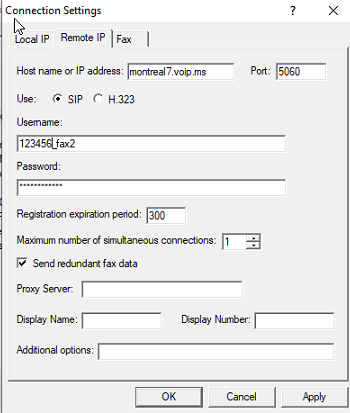
In the Remote IP Settings Tab.
Host name or IP address: Here you enter the host name or IP address for the remote T.38 fax server. voip.ms uses dedicated servers for faxing that require a Virtual Fax DID. The servers available are fax1.voip.ms, fax2.voip.ms and fax3.voip.ms. Enter fax1.voip.ms
If you are not using a dedicated fax server and using a Voice DID, enter the appropriate host name for your Voice DID, for example montreal2.voip.ms or newyork1.voip.ms
Port: Enter the port number for the remote T.38 fax server. For voip.ms the port number is 5060. You can also use 5080 if it was used in the Local IP settings tab.
Use SIP: Enable this option to use the SIP protocol to T.38 fax operations.
Username: Your voip.ms username is your 6-digit account number example: 123456. Enter the username of your T.38 fax service provider account here. If you use a voip.ms sub-account, it will be in the format 123456_{sub-account-name}
Password: Enter the password of your T.38 fax service provider account.
Registration expiration period: 300. Sets the period of time, in seconds before the SIP or H.323 registration expires and re-registration occurs to remain active. Your T.38 fax service provider may provide a specific expiration period used by their service. The default value here is 300 (seconds)
Maximum number of simultaneous connections: voip.ms supports multiple simultaneous connections for fax operations. FaxTalk supports up to 30 connections. The number of simultaneous connections is determined by your T.38 fax service provider based on their plan offerings.
Send redundant fax data – Enable this option to send the previous data packet along with the next data packet to ensure there is no data loss during transmission. Having this option enabled does add additional overhead to the data transfer process when sending faxes.
Proxy Server – You can leave this blank unless the provider indicated that a proxy server is used/required.
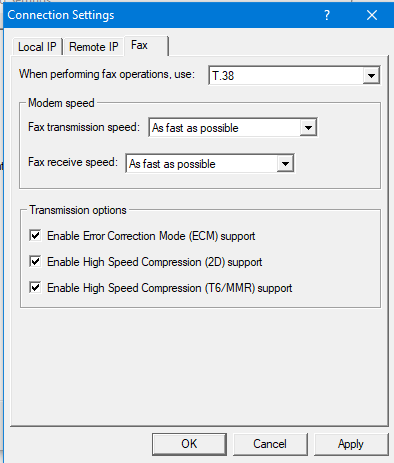
In the Fax Settings Tab.
When performing fax operations, use: T.38 Fax
Specifies the Internet fax standard FaxTalk should use when performing fax operations. Default is T.38 Fax.
Fax transmission speed: Specifies the maximum speed at which you want to transmit faxes. The maximum speed for T.38 fax is 14,400 bps.
Fax receive speed: Specifies the maximum speed at which you want to receive faxes .The maximum speed for T.38 fax is 14,400 bps.
Note: Normally you would want to send and receive faxes at the highest speed possible but in some cases you may encounter a fax machine that has problems sending or receiving faxes at high speed and you’ll need to lower the speed to properly receive the fax.
Transmission options
Enable Error Correction Mode (ECM) support – Enable this option to use Error Correction Mode (ECM) when sending or receiving faxes.
Note: Error Correction Mode provides a more reliable fax transmission by verifying the data received is the same as the data sent.
Enable High Speed Compression (2D) support – Enable this option to use high-speed compression (also referred to as MR or G3-2D encoding) when sending or receiving faxes.
Note: Using 2D compression will result in significantly reduced transmission times since the data being transmitted is compressed. In some cases, you may find that some fax machines have problems receiving faxes when 2D compression is enabled.
Enable High Speed Compressions (T6/MMR) support – Enable this option to use CCITT Group 4 compression, also referred to as G4 or Modified Modified READ (MMR) defined in the ITU-T T.6 fax standard. Provides more advanced compression compared to the Group 3 MH and MR compression formats.
Voip.ms Notes
The voip.ms Virtual Fax service does not provide real-time incoming faxes for FaxTalk purposes. This is a store and forward fax service. Faxes that are sent to your Virtual Fax DID are answered by voip.ms fax servers and then are forwarded to FaxTalk using the T.38 fax protocol. They will also appear as a received fax in your voip.ms web panel. Outgoing faxes are always sent in real-time and are also logged in your voip.ms web panel.
Faxes sent and received using a Voice DID are sent and received in real-time. FaxTalk must be actively monitoring incoming calls to receive faxes.